
Moodle is a powerful open-source learning management system (LMS), but it occasionally runs into errors like any complex system. Whether you’re a Moodle admin, developer, or course creator, encountering an unexpected error can disrupt learning experiences.
Most Moodle errors can be solved with a combination of debugging tools and admin access to the server. Understanding the root cause helps prevent the same error from happening again.
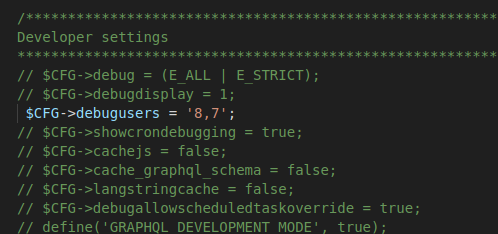
Note: To fix these errors without consuming too much time, we suggest must check the logs frequently and while debugging, first of all, enable the debugging setting. If you are not able to access the admin, you can also do so by editing your config file, where you just need to uncomment the debugging code. Here we are sharing the related screenshots.
Steps to enable debugging settings from Moodle admin settings:
-
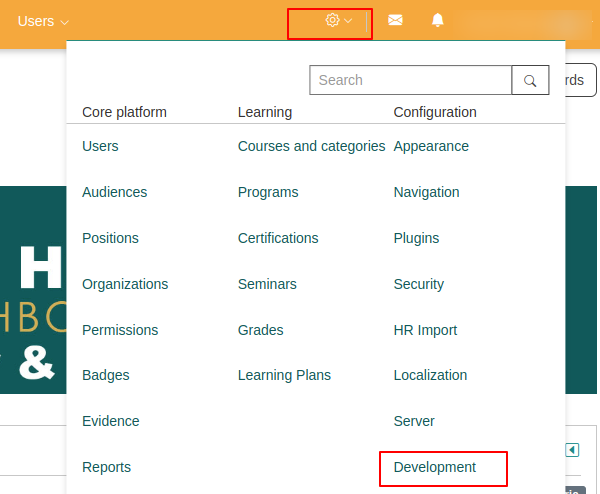
- Log in to the Moodle admin area and click on the settings icon located in your dashboard’s navigation menu.
- Once you click the settings icon, a pop-up will appear, allowing you to select the development menu option.
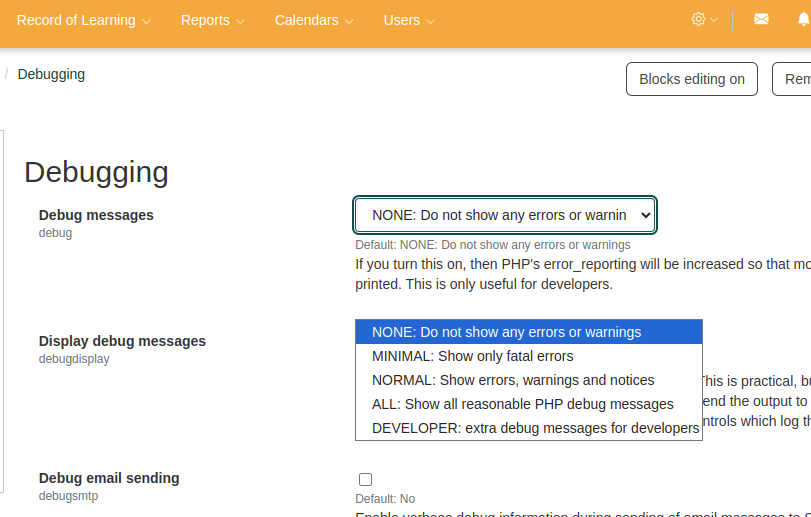
- A debugging screen will be displayed where you’ll find the debug message options at the top, currently set to the default value: “NONE: Do not show any errors or warnings.” At this point, choose the option that fits your needs for developers. It’s suggested to select: “Developer: extra debug messages for developers.” Additionally, ensure you check the “Display Debug messages” option and save your changes.
How to enable debugging from the config file:
- Open your config.php, uncomment the first two lines of the developer settings section, and save the changes to your file.
Now we will discuss the most common Moodle error types, their causes, and solutions to help you fix them quickly and effectively.
1. Error writing to the database
- Cause:
- The database user doesn’t have write permissions
- The server has run out of disk space
- Corrupted database tables
- Fix:
- Check user privileges in MySQL
- Clear space on the server if needed
- Run database repair commands like mysqlcheck or REPAIR TABLE
2. Coding error detected, it must be fixed by a programmer
- Cause:
- Bug in a plugin or core code
- PHP version compatibility issues
- Fix:
- Enable debugging in Moodle settings or config.php
- Check the stack trace and disable the problematic plugin or theme
3. Error reading from the database
- Cause:
- Slow or crashing database
- Timeout from a large query
- Corrupt table
- Fix:
- Increase database limits (max_allowed_packet, wait_timeout)
- Enable slow query logging
- Repair or vacuum database tables
4. A required parameter (id) was missing
- Cause:
- Broken link or form
- Plugin or theme error, not passing the correct data
- Fix:
- Check the URL or form causing the issue
- Use browser developer tools to inspect the request