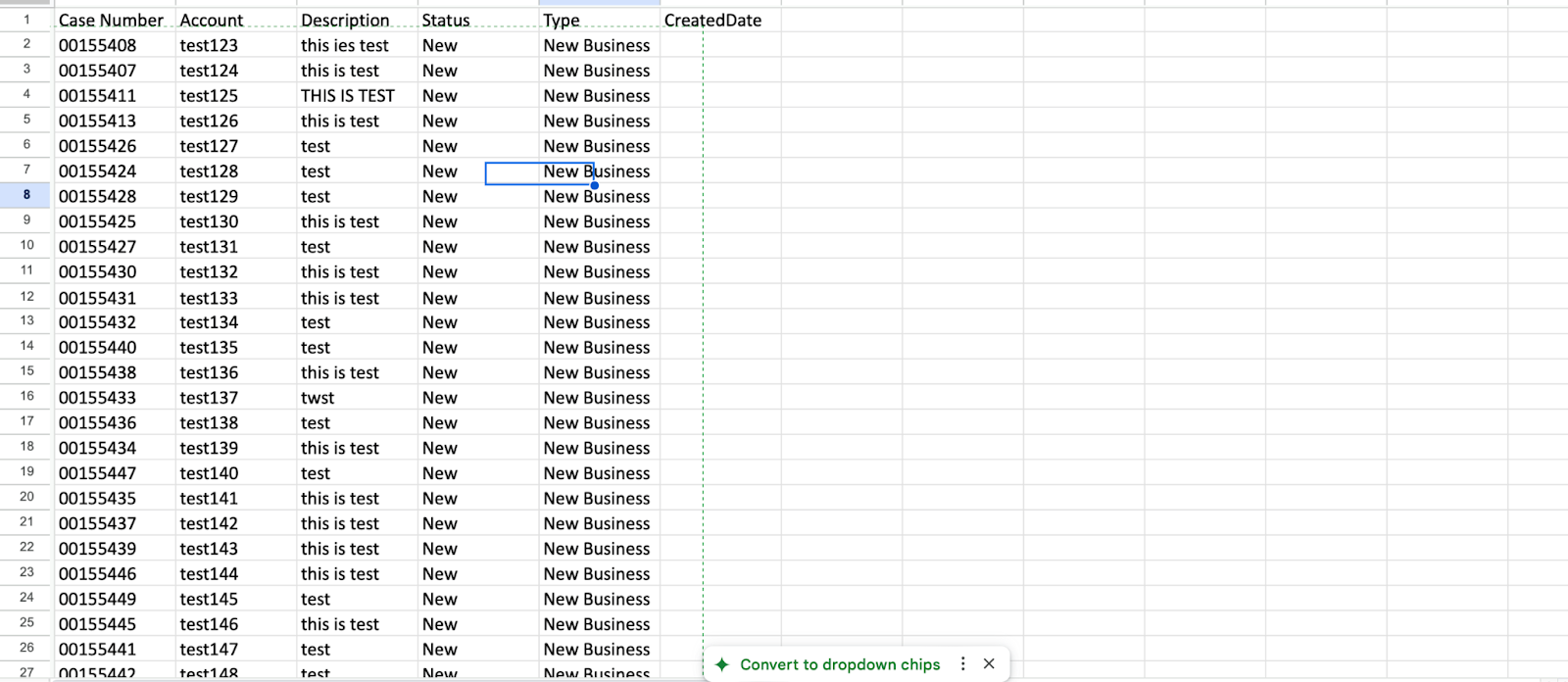
Here is an article related to how to implement Excel functionality in LWC. Sometimes we have a requirement to read or write data to Excel sheets using LWC so for that we have a javascript library named ‘SheetJS’ which you can download from the internet.
SheetJS is a standalone script that needs to be added to a static resource once downloaded and due to name restrictions you will have to keep the name as sheetjs.js. Once that is done then we will have to load the script in the LWC component and use its functions to export and import data from or to excel. Let’s look at how to do that.
Firstly assuming that you have renamed the script to sheetjs.js the static resource name will be sheetjs. Now you can use the async loadScript method to fetch and load the script. The script has an XLSX variable which you will use in your LWC to perform the actions. Here is an example of the script to export case data to the excel.
Firstly open the IDE you use and create an LWC component, you can name it anything. For now, I am naming it as sheetComponent
sheetComponent.html
<template>
<template if:true={dataToExport}>
<button onclick={handleDownload}><b>Click to Export!</b></button>
</template>
<template if:false={dataToExport}><b>Please wait for data to load …</b></template>
</template>
sheetComponent.js
import { LightningElement, wire, api } from ‘lwc’;
import { loadScript } from ‘lightning/platformResourceLoader’;
import sheetjs from ‘@salesforce/resourceUrl/sheetjs’;
import getCases from ‘@salesforce/apex/CaseController.getCases’;
import { ShowToastEvent } from ‘lightning/platformShowToastEvent’;
export default class SheetComponent extends LightningElement {
dataToExport = []; // will hold data for export
caseData = [];
handleDownload(event){
getCases()
.then((response) => {
//console.log(“cases”,response);
this.caseData = response;
this.exportCaseData();
})
.catch((error) => {
this.handleErrors(error);
});
}
exportCaseData(){
// Prepare a html table
let header = [‘Id’,’Case Number’,’Account’,’Description’,’Status’,’Type’,’CreatedDate’];
let data = [header].concat(this.caseData.map(record => [
record.Id,
record.CaseNumber,
record.AccountId,
record.Description,
record.Status,
record.Type,
record.CreatedDate
]));
this.dataToExport = data;
console.log(‘dataToExport’+JSON.stringify(this.dataToExport));
this.downloadXLS();
}
@api async downloadXLS() {
await loadScript(this, sheetjs); // load the library
// create workbook
var wb = XLSX.utils.book_new();
var ws = XLSX.utils.aoa_to_sheet(this.dataToExport);
XLSX.utils.book_append_sheet(wb, ws, “Data”);
// export
XLSX.writeFile(wb, “DataToExport.xlsx”);
}
handleErrors(errors){
let messages = [];
if (errors) {
if (!Array.isArray(errors)) errors = [errors];
for(var i = 0; i < errors.length; i++){
var error = errors[i];
if (error.body){
if (error.body.message){
messages.push(error.body.message);
}
}
if (error.hasOwnProperty(“message”))
messages.push(error.message);
if (typeof error == ‘string’)
messages.push(error);
}
}
let toastEvent = new ShowToastEvent({
title: “Error”,
message: messages.join(“; “),
variant: “error”
});
this.dispatchEvent( toastEvent );
}
}
sheetComponent.js-meta.xml
<?xml version=”1.0″ encoding=”UTF-8″?>
<LightningComponentBundle xmlns=”http://soap.sforce.com/2006/04/metadata”>
<apiVersion>55.0</apiVersion>
<isExposed>true</isExposed>
<targets>
<target>lightning__RecordPage</target>
<target>lightning__AppPage</target>
</targets>
</LightningComponentBundle>
Now create apex class and add function in it to retrieve the cases
CaseController.cls
@AuraEnabled
public static List<Case> getCases(){
List<Case> cases = [SELECT Id, CaseNumber, AccountId, Account.Name, Description, Status,Type FROM Case where isClosed = false];
return cases;
}
And you are done, now you will see the ‘Click to Export!’ button and you can click on it and it will download the excel document with case data in it.