
When building web applications on Windows servers using IIS, you may occasionally need to utilize locally installed desktop applications — like LibreOffice — for server-side tasks. A common example is converting Microsoft Word documents into PDF format.
In this post, we’ll walk through how to configure LibreOffice to work under IIS, allowing you to convert files (e.g., .docx, .xlsx) to .pdf through a web application.
Why LibreOffice?
LibreOffice offers a powerful command-line interface (–headless mode) that allows you to convert office files into PDFs without needing a graphical user interface. It’s open-source, flexible, and works well even in server environments — if configured correctly.
Step-by-Step: Configure LibreOffice for Use in IIS
Step 1: Install LibreOffice on the Server
- Download and install LibreOffice.
- Ensure the path to LibreOffice (e.g., C:\Program Files\LibreOffice\program) is accessible and noted for later use in your application logic.
Step 2: Create a Writable Profile Directory for IIS
LibreOffice needs a temporary writable profile folder when running in headless mode — especially under IIS’s application pool identity, which has limited permissions by default.
Here’s how to create and configure it:
-
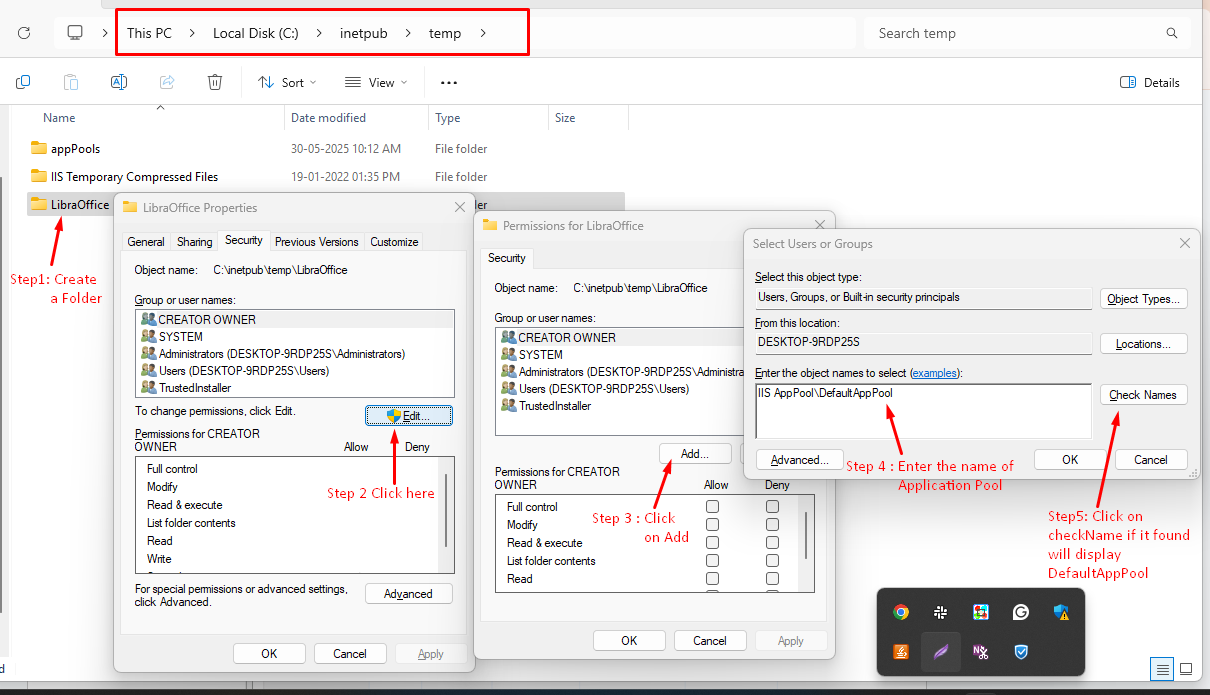
- 1. Create folder a folder. C:\inetpub\temp\LibreOffice
- 2. Right-click → Properties → Security tab → Click Edit
- 3. Click Add
→ Type:
IIS AppPool\YourAppPoolName
(e.g., IIS AppPool\DefaultAppPool)
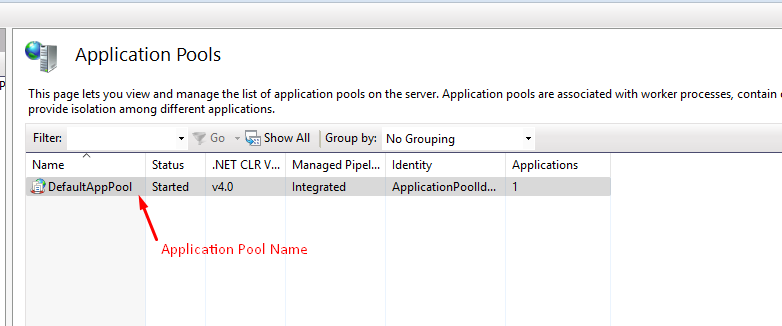
- 4. Click Check Names → Click OK
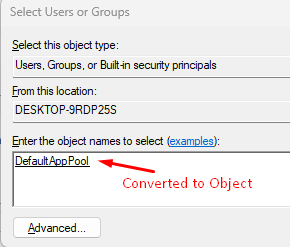
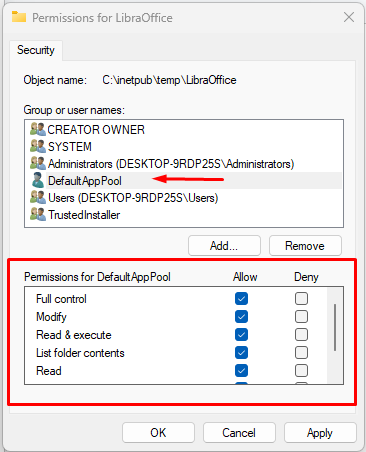
- 5. Grant Full Control permissions to the app pool
Step 3: (Optional) Load User Profile in IIS
In some cases, LibreOffice requires a complete user profile environment to function correctly.
-
- Open IIS Manager
- Go to Application Pools
- Select your App Pool (e.g., Backend)
- Right-click → Advanced Settings
- Set Load User Profile = True
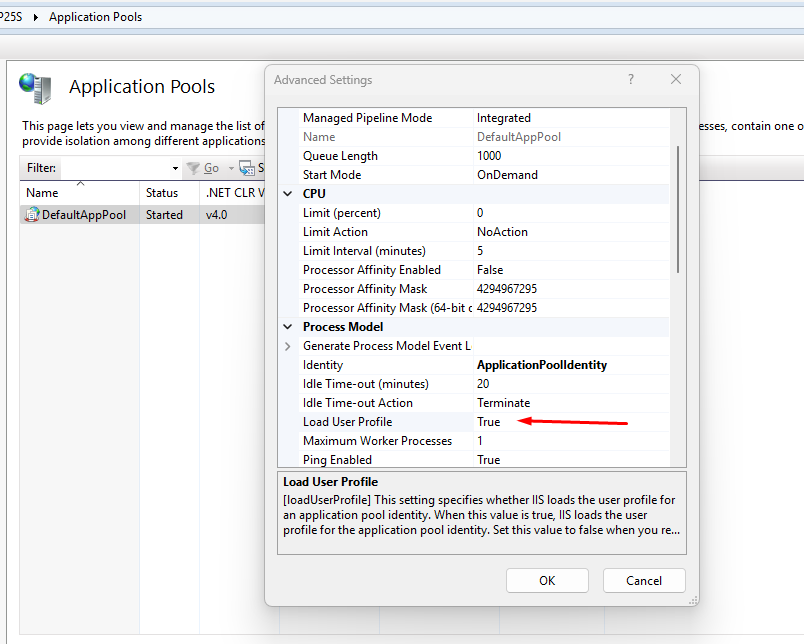
Note: This step is optional.
Step 4: Test File Conversion via Command Line
Run a quick test (from Command Prompt) to verify:
“C:\Program Files\LibreOffice\program\soffice.exe” –headless –convert-to pdf –outdir “C:\inetpub\wwwroot\testing\output” “C:\inetpub\wwwroot\testing\input\result.docx”
If it works here, you’re good to invoke the same logic in your web application.
Integrating in Your Web Application (e.g., ASP.NET MVC/Core)
Use ProcessStartInfo in C# to run the same command via your backend code:
var startInfo = new ProcessStartInfo
{
FileName = @”C:\Program Files\LibreOffice\program\soffice.exe”,
Arguments = $”–headless –convert-to pdf –outdir \”{outputDir}\” \”{inputFile}\””,
RedirectStandardOutput = true,
RedirectStandardError = true,
UseShellExecute = false,
CreateNoWindow = true
};
using (var process = Process.Start(startInfo))
{
process.WaitForExit();
var output = process.StandardOutput.ReadToEnd();
var error = process.StandardError.ReadToEnd();
}
Summary
By default, IIS application pools run with limited permissions, which can prevent desktop applications like LibreOffice from running properly. But by:
- Creating a dedicated temp folder
- Assigning correct permissions to the App Pool
- (Optionally) Enabling Load User Profile
You enable your IIS-hosted web app to interact with installed software — unlocking powerful features like file conversion, report generation, or even image processing.